
Integrating your MettleCI Workbench with ServiceNow will enable MettleCI Workbench to perform a dynamic lookup when linking DataStage Git commits to one or more ServiceNow work items directly within the Workbench user interface. It is a two-step process, there are some items to configure and collect from the ServiceNow instance, and then some items to configure in Workbench.
Register Workbench as an OAuth2 ServiceNow Application
-
Setup OAuth in your ServiceNow instance.
-
Create a new OAuth API endpoint for Workbench to access ServiceNow:
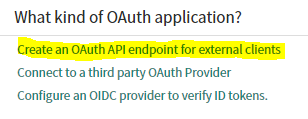
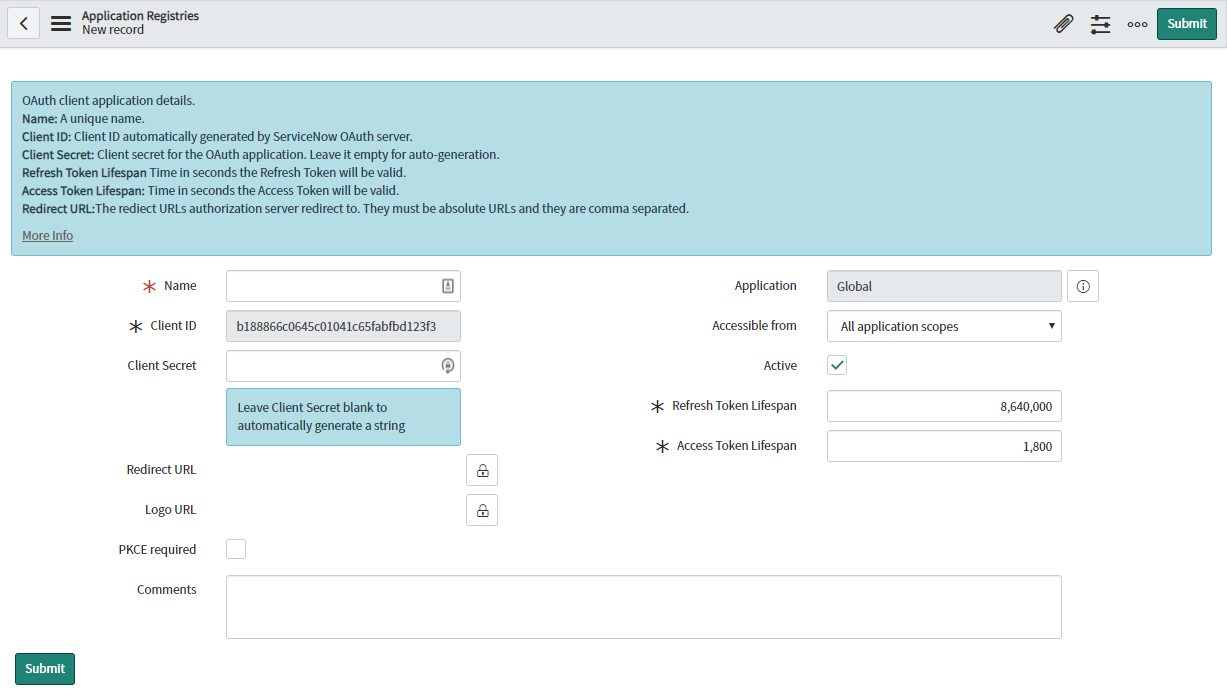
-
Set the Name field to
MettleCI Workbenchand the Redirect URL tohttps://<workbench url>:<port>/api/auth/delegated/<N>where<workbench url>is the URL of your Workbench installation (usually your Development engine),<port>is the https port you are running on (often but not always 8443, check your<config.ymlfile if unsure), and<N>is the index of the WIM you plan to add (the default generic is 0 and if this is the first other WIM you are adding, the value here would be 1) and click Submit.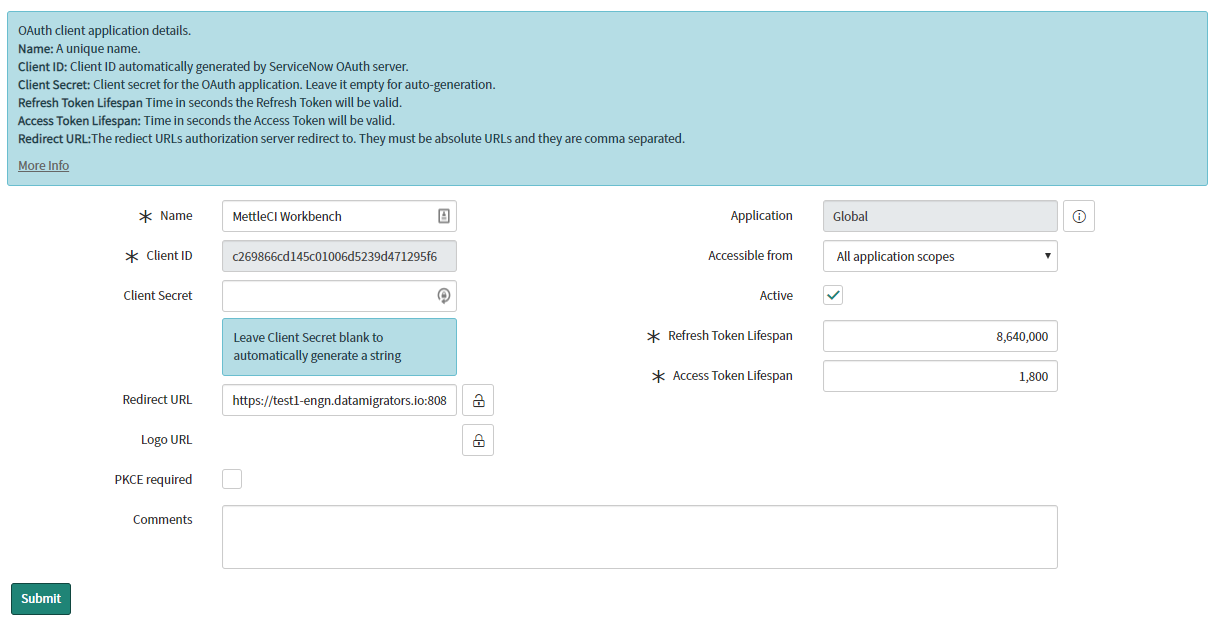
Record the redirect URL for later use so you don’t have to derive it again. If your organization has installed multiple MettleCI Workbench applications, you can add them all to the same ServiceNow Application Registration by adding multiple Redirect URLs. (comma separated)
Note that some ServiceNow instance connections may not function properly if your workbench instance is using a self signed certificate. The submission shown here will save successfully but runtime errors happen when trying to query work items from MettleCI Workbench. If this occurs you will need to reconfigure your Workbench instance to use a CA signed certificate.
-
Click on your newly created Application Registration:
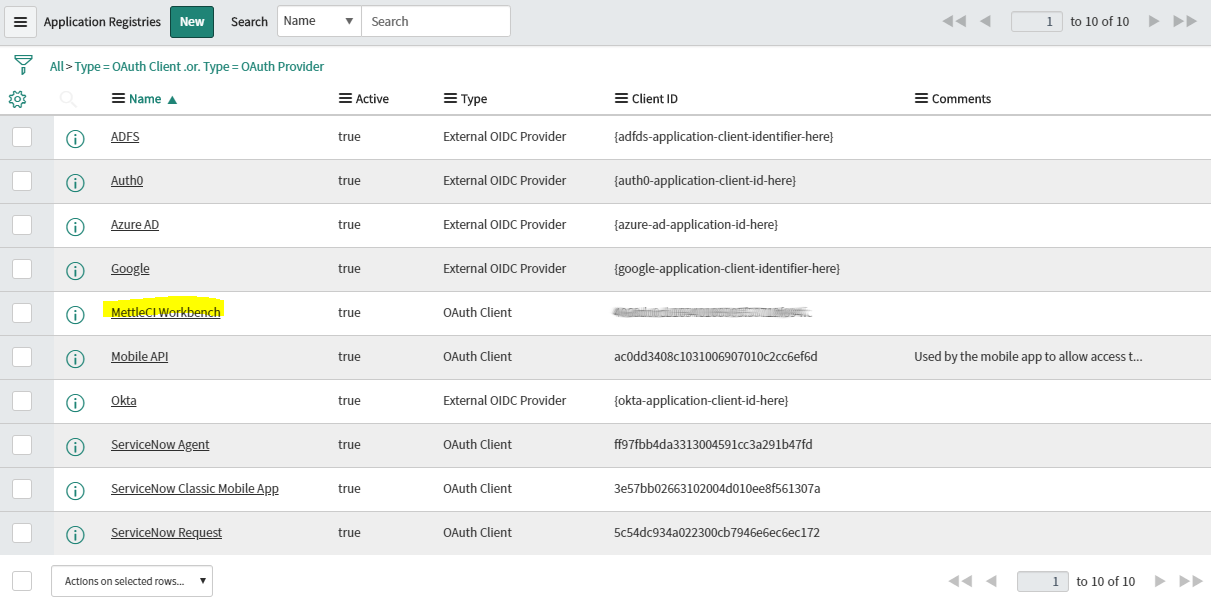
-
Note down the “Client ID” and “Client Secret” field properties for later use:
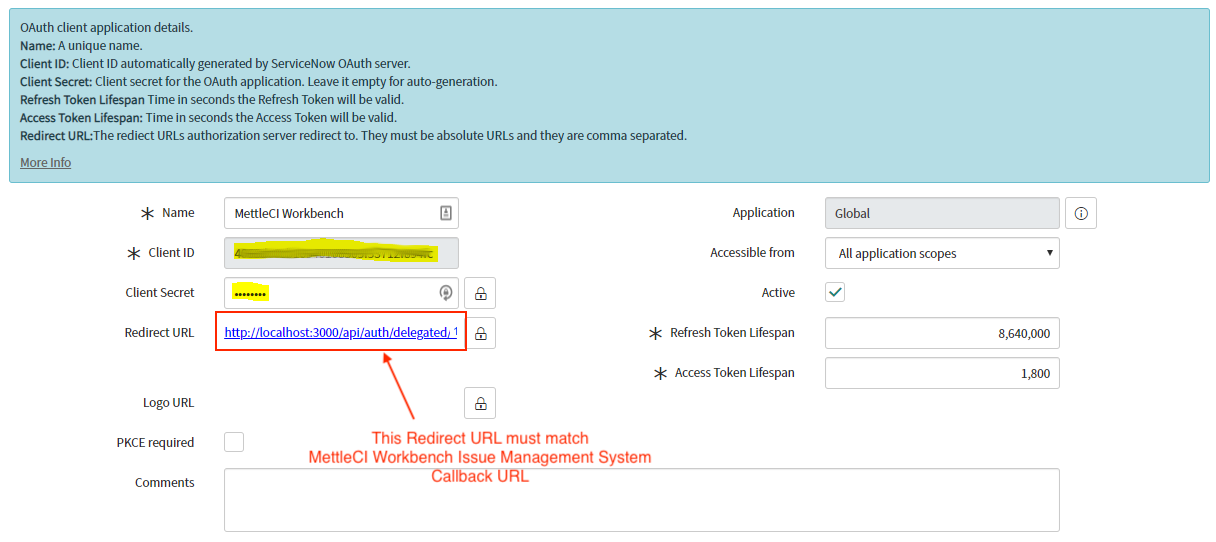
Note that the example shows http:// because it is the automatically supplied default value, but your URL will most likely need to be https://. You’re ServiceNow portion of the configuration is now complete.
Configuring MettleCI Workbench Work Item Lookup with ServiceNow
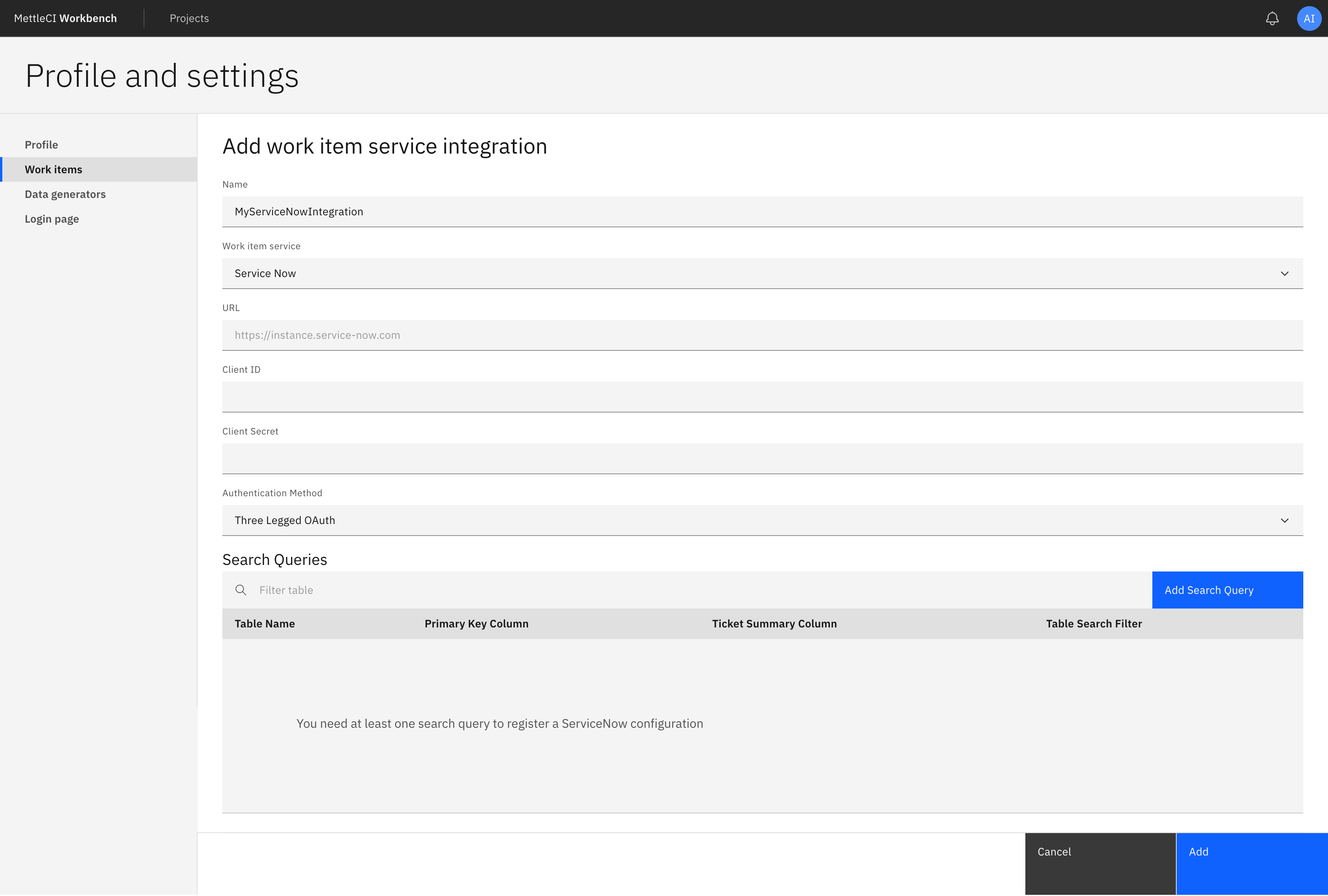
Login to MettleCI Workbench and begin creating a new work item service integration using the steps detailed here. Select ServiceNow as the Work item service to use.
Next, complete the fields in the form that appears.
Field list
-
Name: An arbitrary value that helps you uniqely identify your ServiceNow organisational instance.
-
URL: The URI of your ServiceNow instance recorded earlier.
-
Client ID: Your Application (client) ID recorded earlier
-
Client Secret: Your client secret recorded earlier
-
Search Queries: This has no default and will requrie you to create at least one query. Consult with your ServiceNow administrators to determine which table(s) your organization uses.
Add or edit the query or queries as needed by using the “pencil” icon and “+” icon to edit what is queried or add a new table to query, respectively. The example dialog below uses incident as the table, keyed on ${number} with ${number}: ${short_description} as the summary shown to the user.
OPTIONAL - In the Search Queries section of any query, you can add add a filter expression to limit what is returned. Note that this expression is not checked for correct syntax. Consult with your ServiceNow administrators to determine whether you need to filter (most organizations will not) and what columns/values to filter on. The example dialog below includes a filter on the status column, which limits the result to rows where the value of the column is ‘Active’ leave this field empty if you do not wish to filter results.
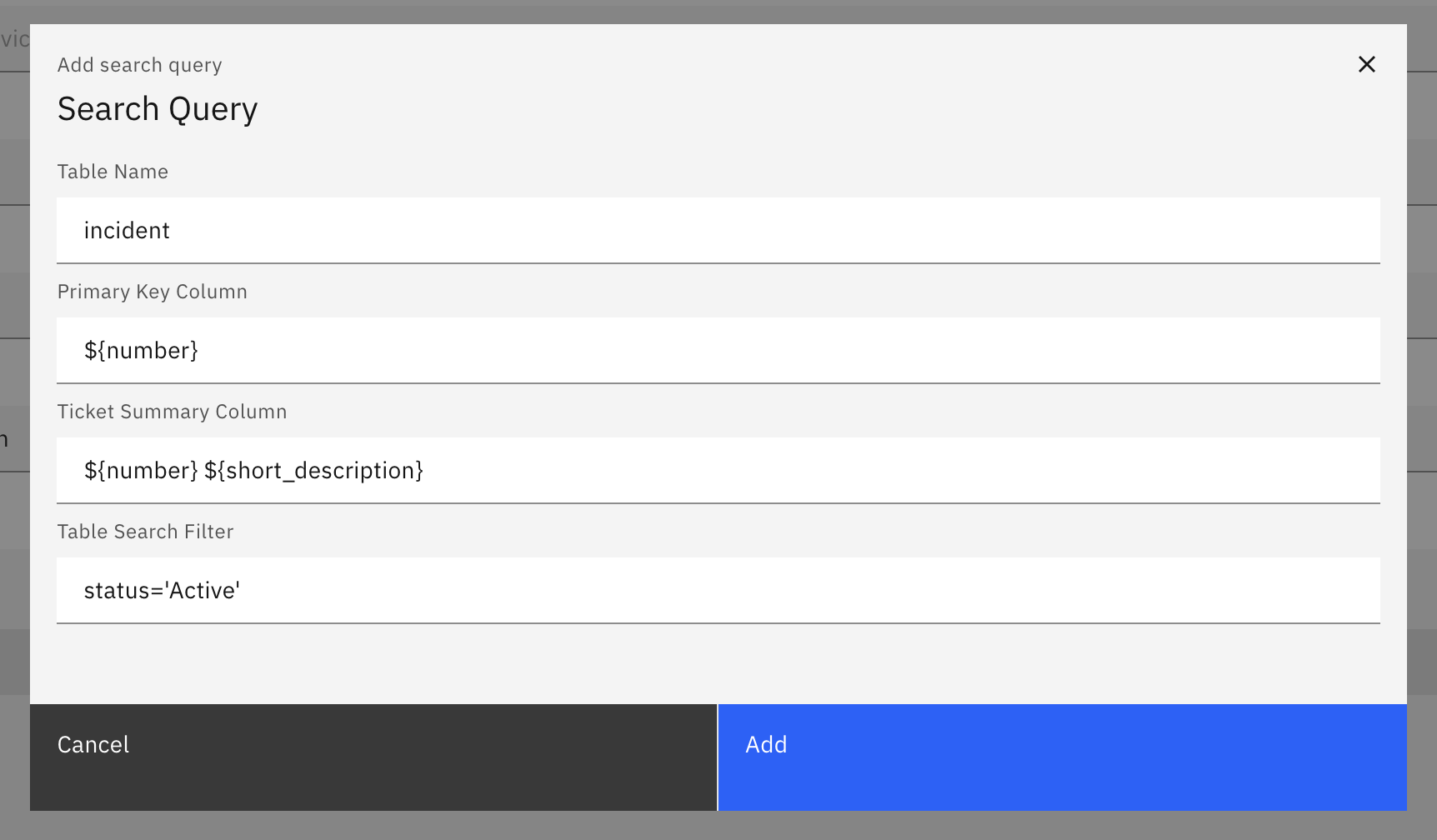
Search queries use ${ } to represent column values. Other characters, if any, are reproduced as is. The filter, on the other hand, takes the column name and a literal without any enclosing ${ }.
Click Add on the Search Query dialog to add your Search Query. Then click Add on the Add work item service integration page to save your ServiceNow integration.
-
The Callback URL will be displayed on the Workbench Issue Management System page.
-
Ensure the callback URL matches the setting on the ServiceNow Application Registration page