
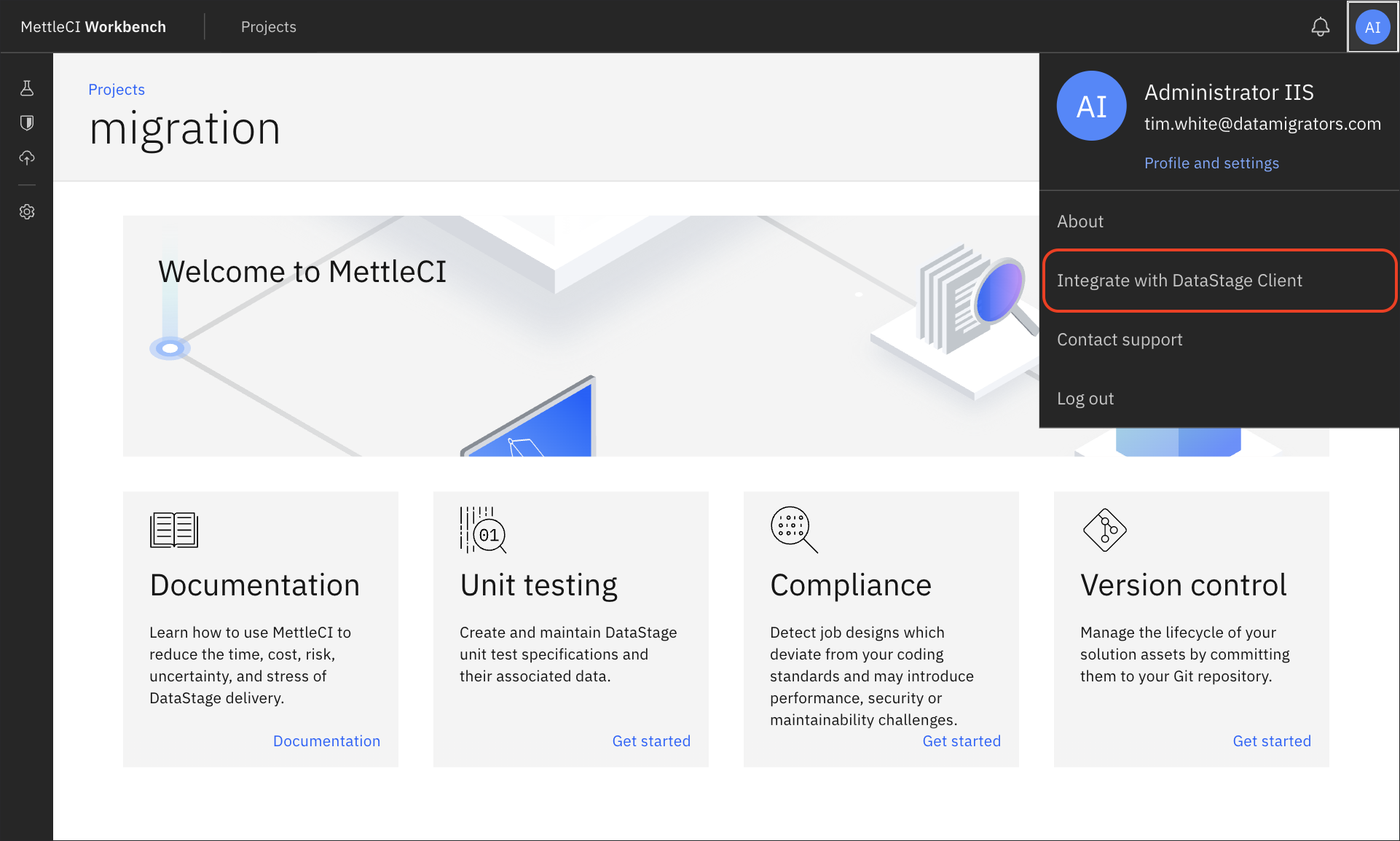
Workbench functionality can be accessed directly via the Workbench UI, or may be triggered directly from the DataStage Client using newly-introduced menu items accessed from the Tools > Custom menu. These menu items can be installed in your DataStage Designer client using the option available on the front page of the Workbench user interface.
Note that running the Menu Installation setup wizard multiple times will result in multiple duplicate entries being added to your DataStage client.
If you do this by mistake, either:
-
Use the DataStage Designer’s Tools > Custom > Customise menu to remove the redundant entries, or
-
Use the Windows RegEdit tool to delete redundant custom menu entries by deleting the keys from the Windows Registry. Relevant keys are described here.
Configuration Steps
-
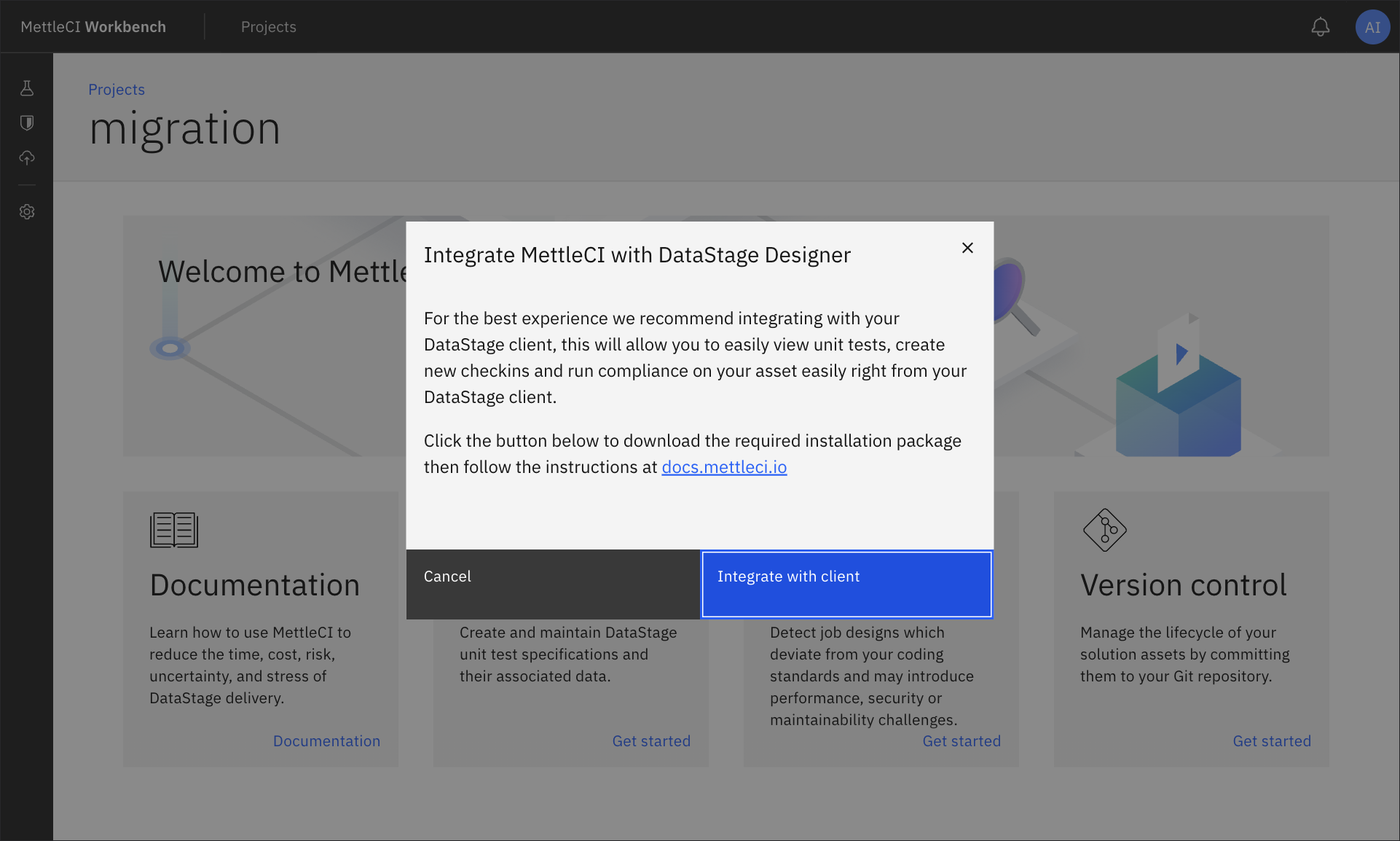
To configure this functionality, click the purple Integrate with DataStage Client button on the Workbench home page.
-
This provides a downloadable file called
MCI_Setup.exe. Run this setup file, agreeing to any Windows Security queries which might be presented. Any warnings from Windows Defender should be dismissed by clicking the Run Anyway button.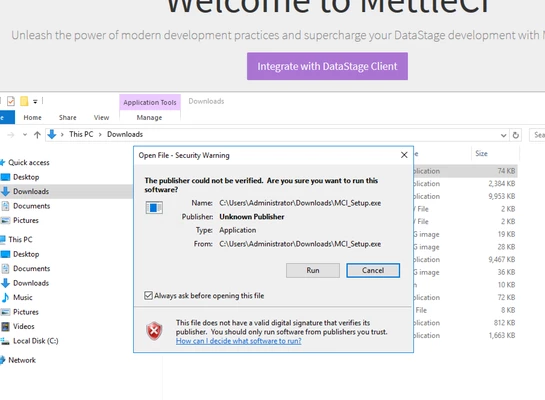
-
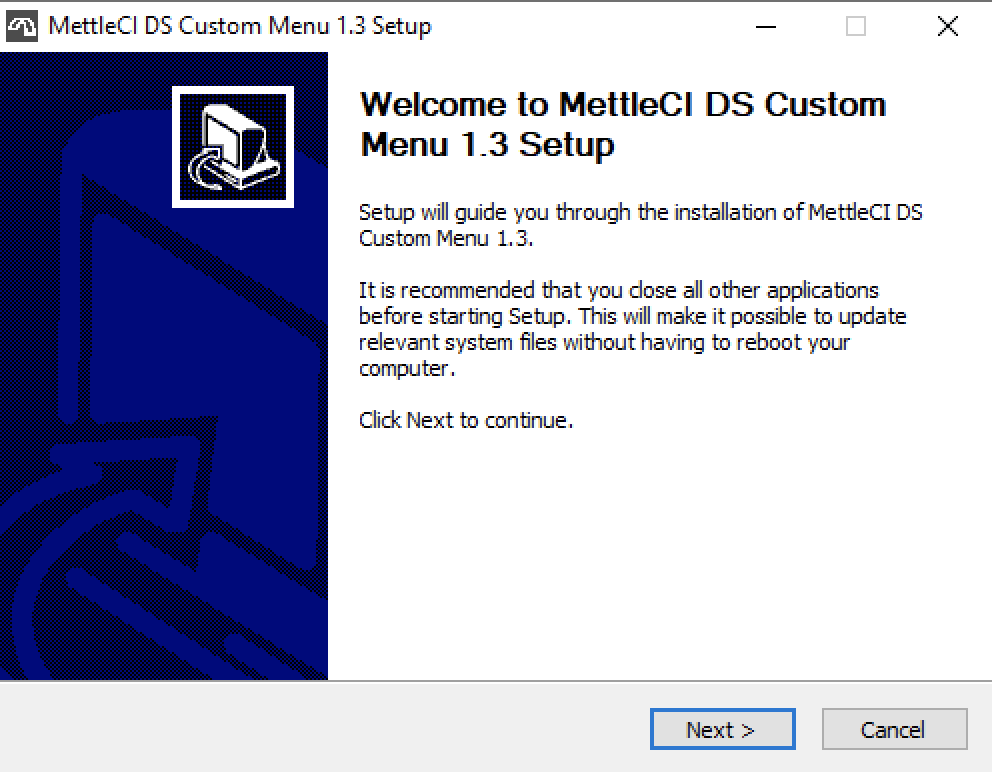
Click Next >> to begin the installation wizard.
-
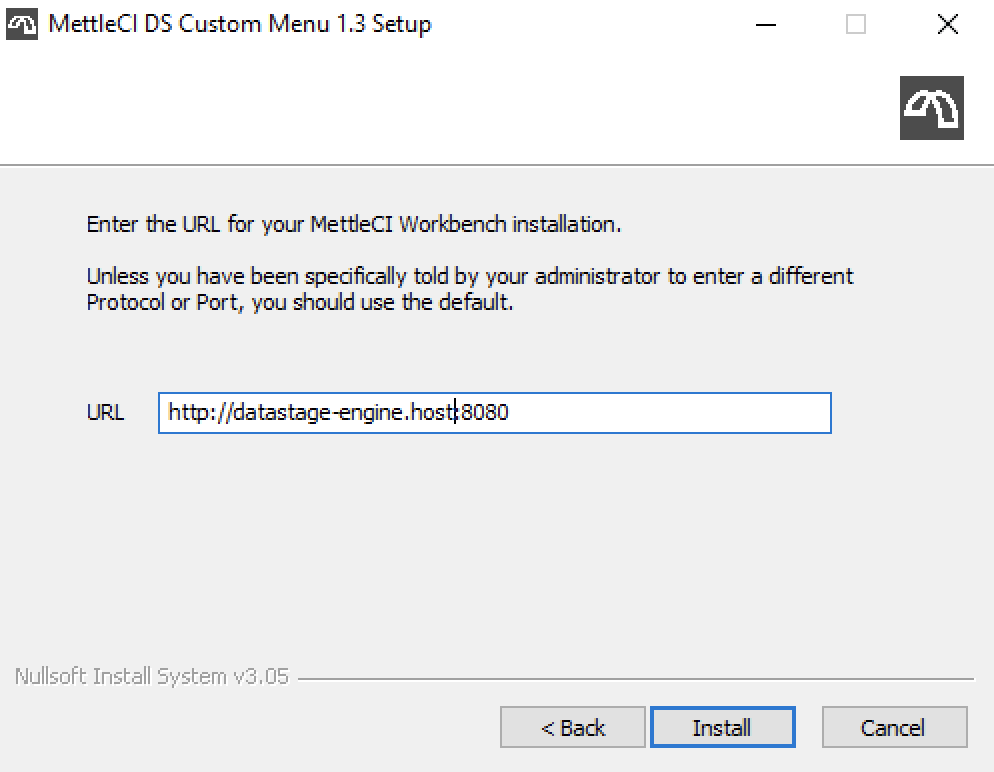
Enter the URL to MettleCI Workbench, then click Install
-
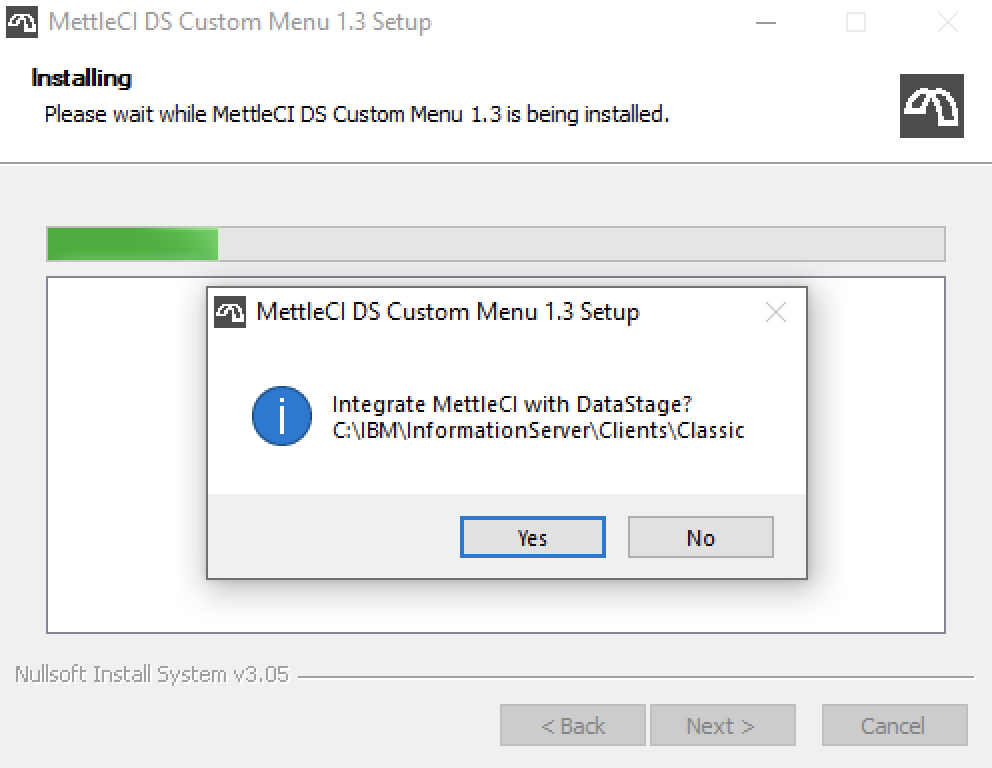
Click Yes to confirm the path to the DataStage client.
-
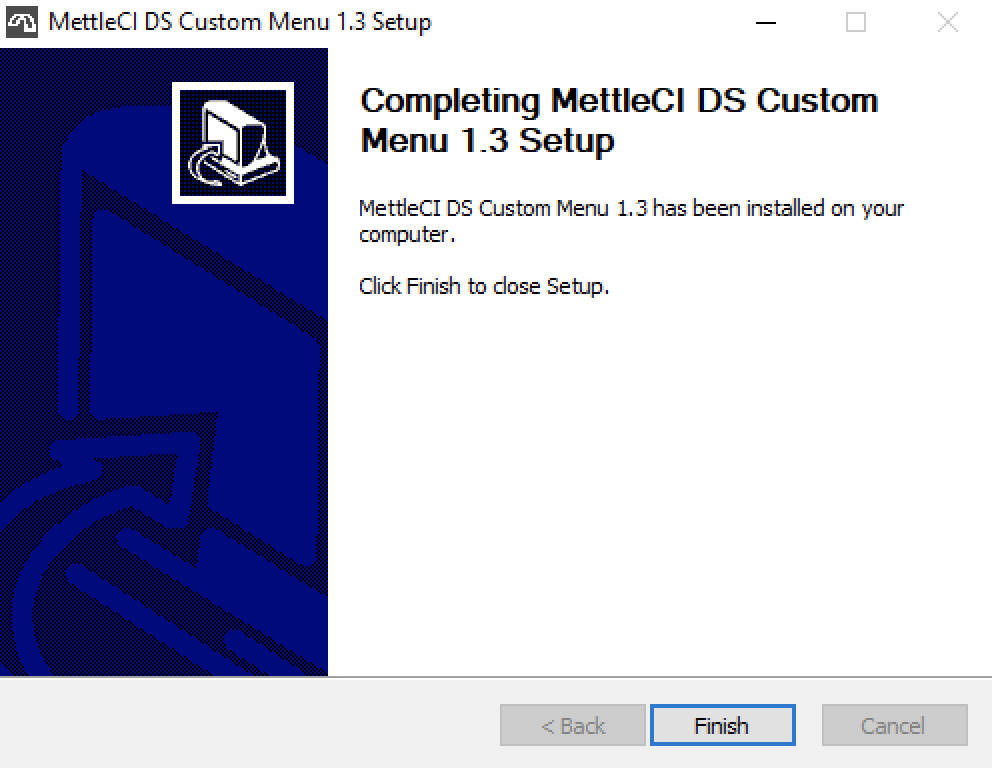
Exit the wizard and log into DataStage.
-
Inspect the Tools > Custom > Customise... settings and note the last four entries.
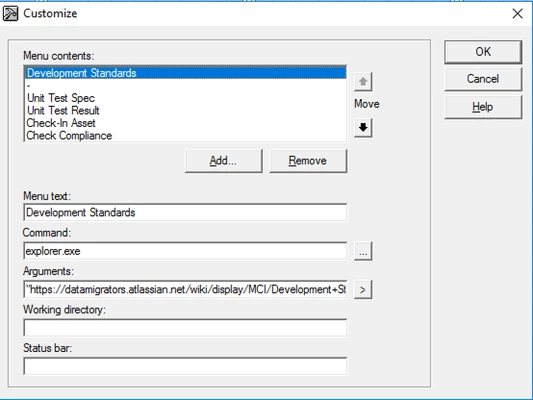
These allow the user to invoke Workbench functionality from within DataStage: Workbench navigates to the appropriate view and auto-populates the Project Name and Job Name with the values from the active job in the DataStage Designer. Open a job and select each menu item, ensuring each time that you are presented with the Workbench page relevant to your menu selection.
Notes
See the FAQ entry for details of the registry keys which are created.
If you don’t have the permissions necessary to run the menu installer or it fails for some other reason, you can create the menu items manually.